> ## Documentation Index
> Fetch the complete documentation index at: https://iadc-isp-docs.mi4.com/llms.txt
> Use this file to discover all available pages before exploring further.
# Navigating the ISP Application
## Getting Started
Welcome to our support guide designed to help you navigate through the IADC ISP web application!
If you are a new user or just getting started, this guide will provide an overview of each section of the application and useful tips to enhance your overall experience.
## Navigation
After logging in, you are directed to the **Homepage**. You can access the homepage at any time by clicking the **Home** link or the IADC logo in the main navigation menu.
The main navigation menu on the left can be collapsed (to give you additional viewing space) or expanded at any time by clicking the **Collapse** button at the bottom.
To sign out of the ISP application, click the **Logout** button on the side navigation bar. This is always recommended if you are using a shared or public computer.
 ## Homepage
 The Homepage is your starting point for day-to-day work in the ISP application. From here you can:
* View or edit your company details
* View a summary dashboard of your last 12 months of reports
* Edit or view current reports
* Start a new report
The **Interactive Dashboard** section shows a quick summary of hours and incident counts from the 12 most recent reports. Use the dropdown to view individual regions or categories.
The Homepage is your starting point for day-to-day work in the ISP application. From here you can:
* View or edit your company details
* View a summary dashboard of your last 12 months of reports
* Edit or view current reports
* Start a new report
The **Interactive Dashboard** section shows a quick summary of hours and incident counts from the 12 most recent reports. Use the dropdown to view individual regions or categories.
 Scrolling down, the **Report History** section shows your most recent reports. You can edit reports from the current reporting year, view reports from previous years, and expand any report to see a breakdown by operation category.
 [View Create/Edit Reports guides →](#related-guides)
## Analytics
[View Create/Edit Reports guides →](#related-guides)
## Analytics
 The **Analytics** page provides reporting tools for your submitted data. The default tab is a fully interactive dashboard with a customizable date range and dropdowns for each operation category.
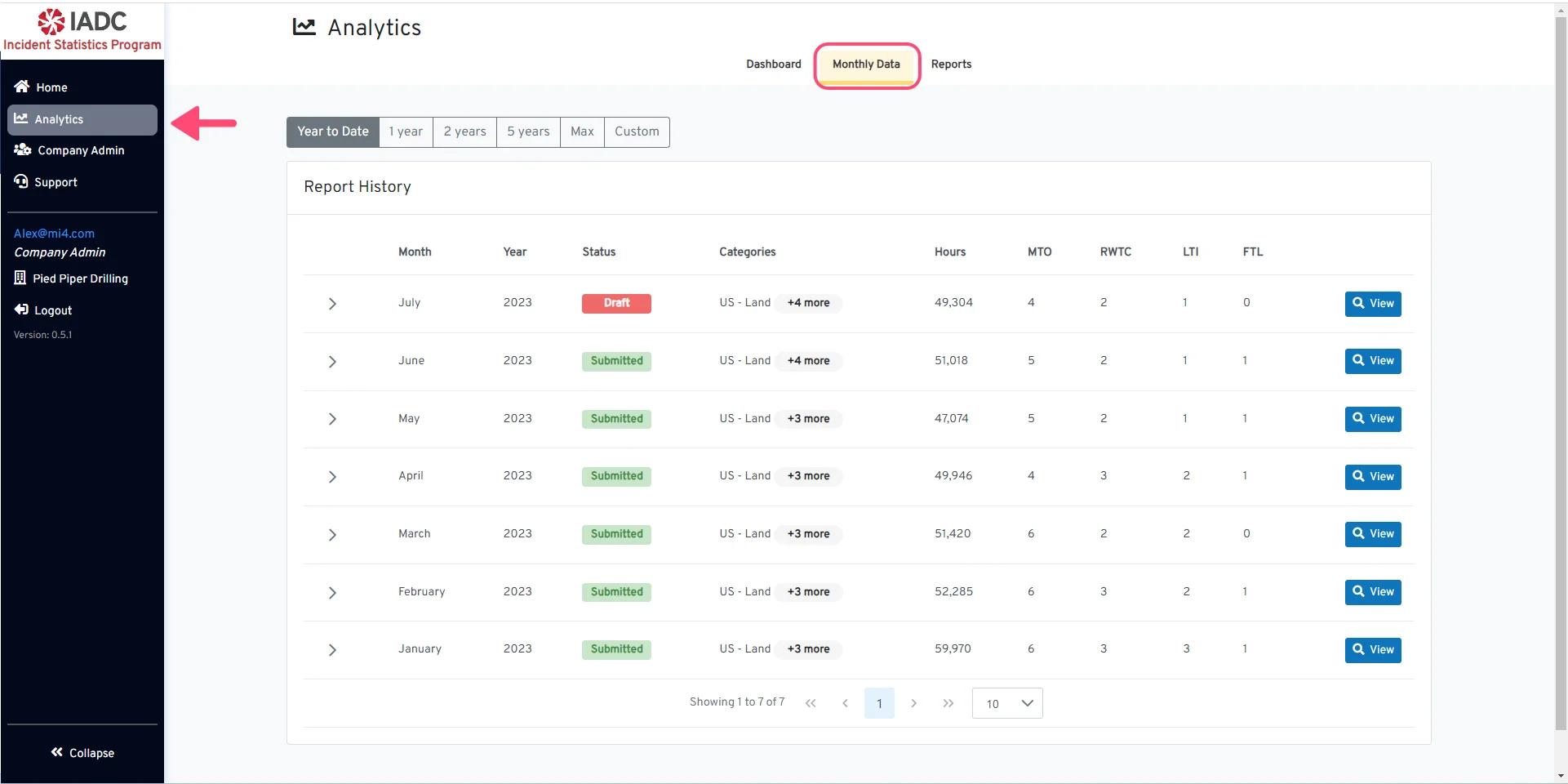 The **Monthly Data** tab provides downloadable and printable versions of all monthly reports, as well as access to public and participant company reports.
[View Analytics guides →](#related-guides)
## Company Admin
The **Monthly Data** tab provides downloadable and printable versions of all monthly reports, as well as access to public and participant company reports.
[View Analytics guides →](#related-guides)
## Company Admin
 The **Company Admin** section is only available to users with the Administrator role. This is your control center for managing your organisation's settings and member access, including:
* **Company Settings** — Edit your company name, address, contact details, and active operation categories
* **Members** — Add, edit, or remove company members and manage their roles
* **API Keys** — Generate, retrieve, or deactivate your organisation's public API key
[View Company Admin guides →](#related-guides)
## Support
The **Company Admin** section is only available to users with the Administrator role. This is your control center for managing your organisation's settings and member access, including:
* **Company Settings** — Edit your company name, address, contact details, and active operation categories
* **Members** — Add, edit, or remove company members and manage their roles
* **API Keys** — Generate, retrieve, or deactivate your organisation's public API key
[View Company Admin guides →](#related-guides)
## Support
 The **Support** page provides contact information for immediate assistance using the IADC ISP web application, as well as quick access to the official reporting guidelines, tutorials, and public API documentation.
## Change Company
The **Support** page provides contact information for immediate assistance using the IADC ISP web application, as well as quick access to the official reporting guidelines, tutorials, and public API documentation.
## Change Company
 If you have access to more than one company, click the company name in the main navigation menu to swap to a different company.
 Select the company you want to view and proceed by clicking the **Submit** button.
***
## Related Guides
**Create/Edit Reports**
Step-by-step instructions for creating a new monthly report.
How to add incidents and create a Supplemental Incident Report.
How to submit a completed report.
**Analytics**
Explore the interactive analytics dashboard.
Download or print monthly report data.
Access public and private ISP reports.
**Company Admin**
Update your company name, address, and other details.
Add a new member to your company.
Generate, retrieve, or deactivate your API key.
Select the company you want to view and proceed by clicking the **Submit** button.
***
## Related Guides
**Create/Edit Reports**
Step-by-step instructions for creating a new monthly report.
How to add incidents and create a Supplemental Incident Report.
How to submit a completed report.
**Analytics**
Explore the interactive analytics dashboard.
Download or print monthly report data.
Access public and private ISP reports.
**Company Admin**
Update your company name, address, and other details.
Add a new member to your company.
Generate, retrieve, or deactivate your API key.