Adding a New Operation Category

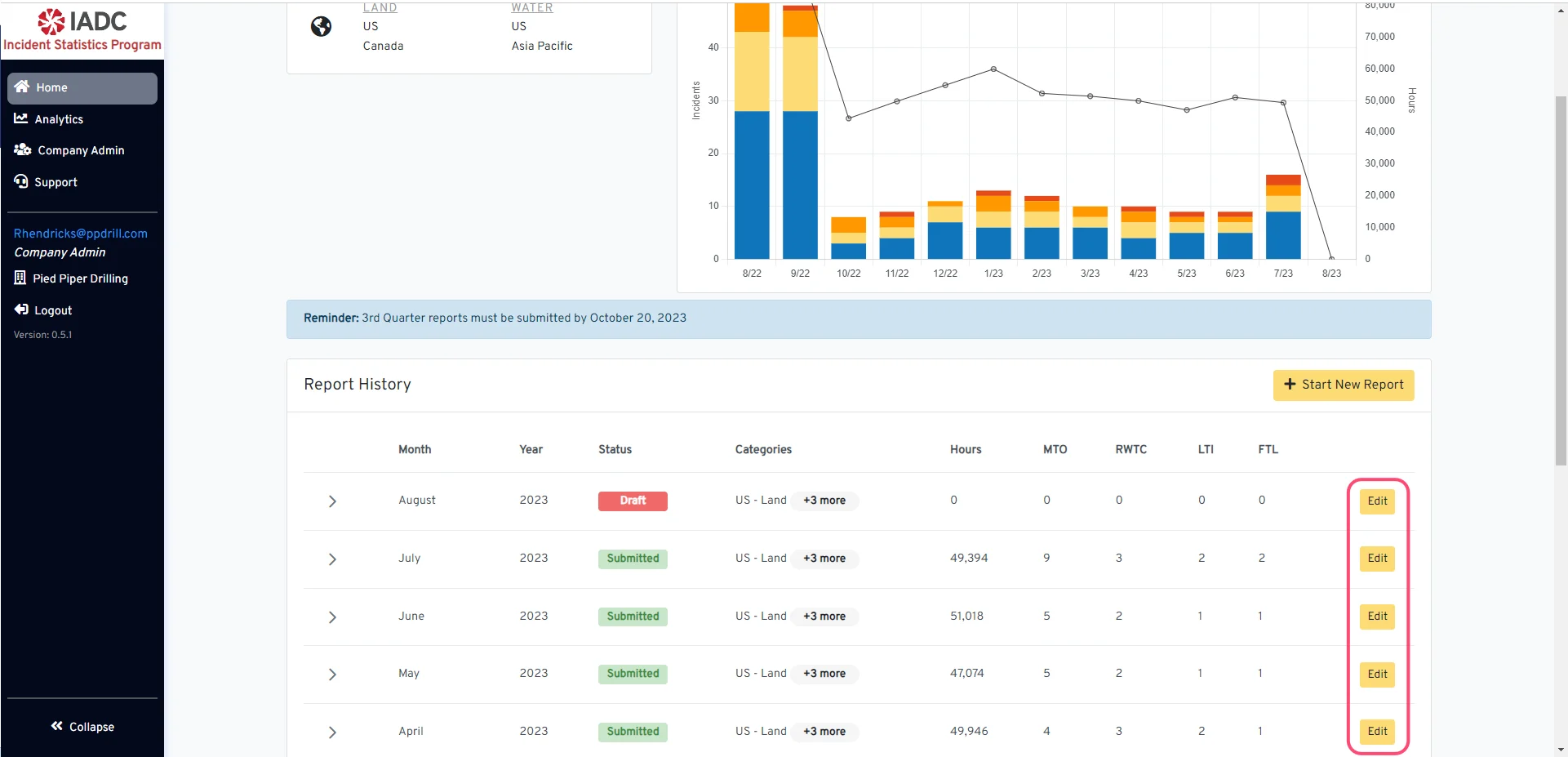
This guide shows you how to add a new Operation Category (region) to an existing report by following these steps: Navigating to the Report Begin navigating to the specific report by clicking the ‘Edit’ button.

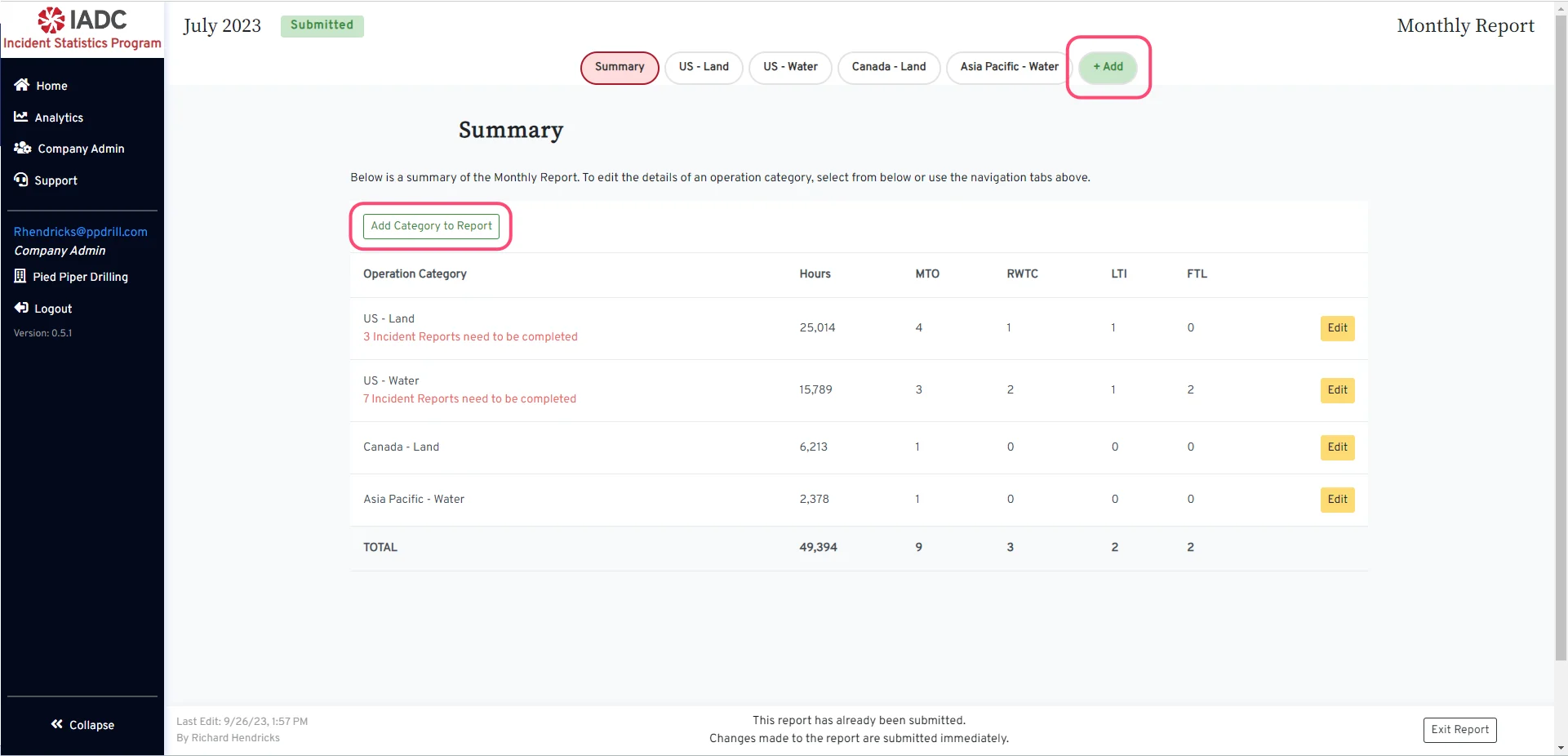
Add Category to Report

Add Category to Report When a monthly report is created, the company’s active operation categories at the time are added by default to the report. If you have already started a monthly report before updating your company’s active operation categories and need to report hours and incidents for a new region/operation category, you will need to add the new category to the report. There are two ways to add a new operation category to an existing report:
  1. Click the + Add button next to the region navigation tabs at the top of the page.
  2. Click the Add Category to Report button from the report Summary page.

Select New Category
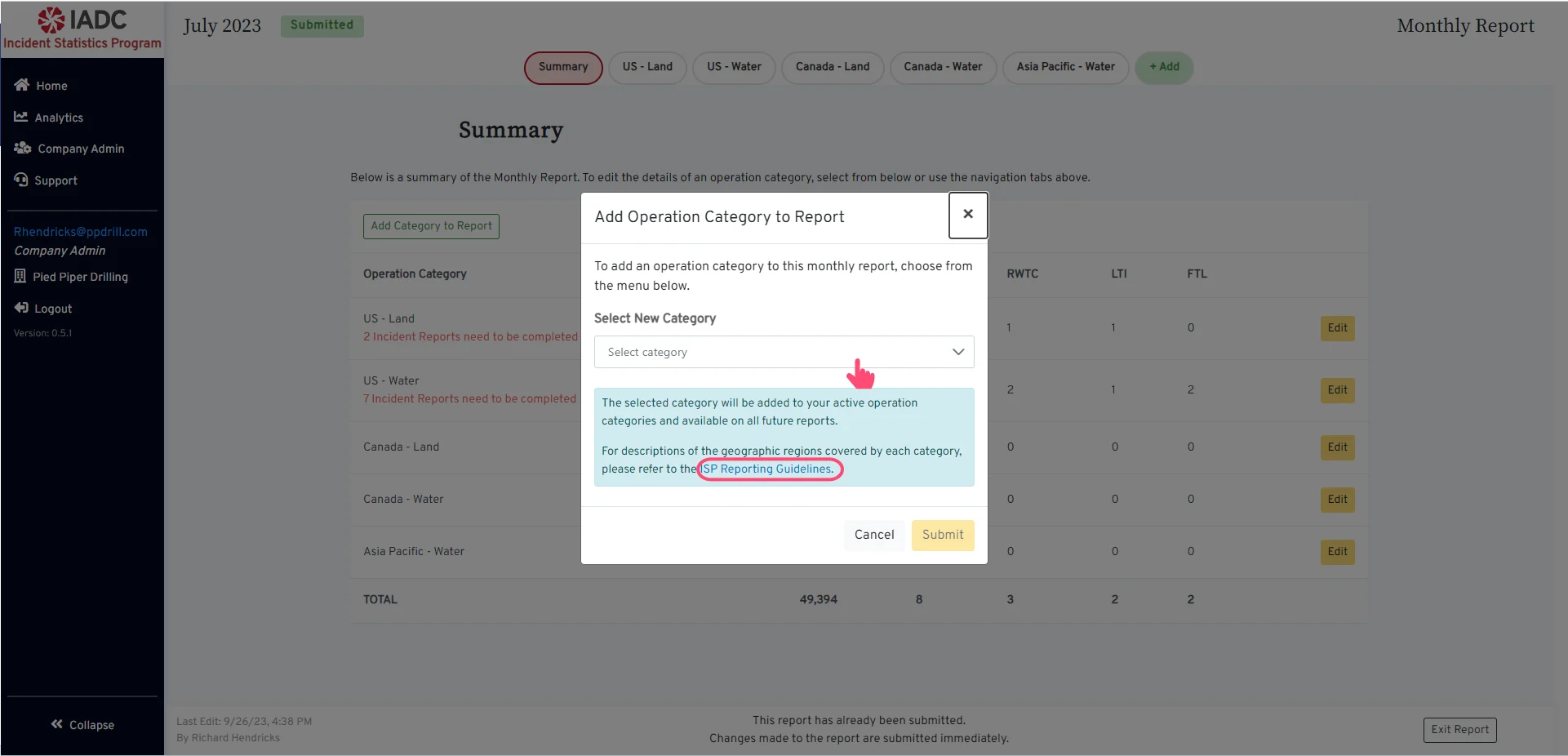
Select New Category To select the new category, click on the dropdown to see the category options. Existing report categories will be disabled.
For descriptions of the geographic regions covered by each category, please refer to the ISP Reporting Guidelines.

Operation Category Successfully Added
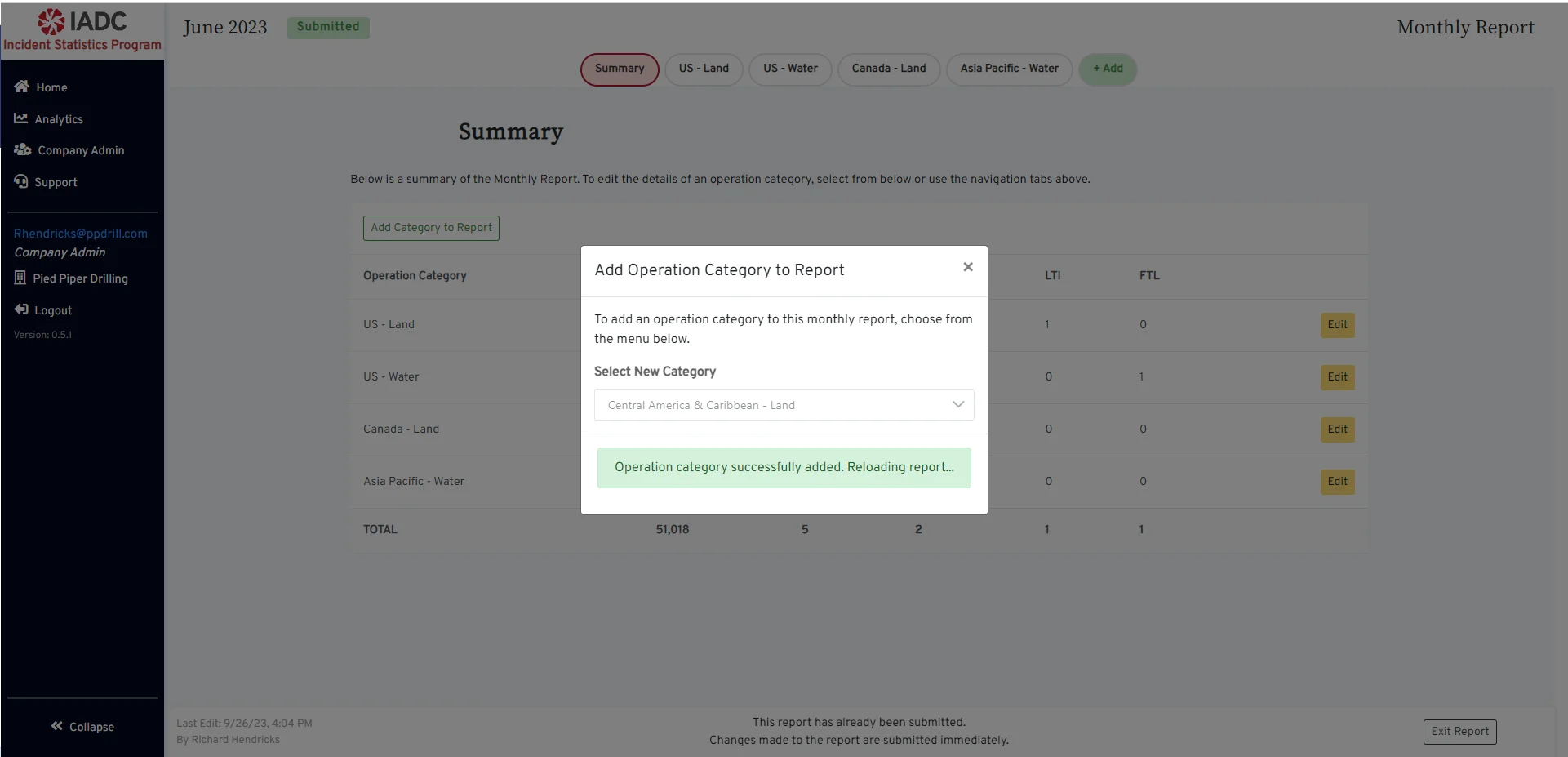
Operation Category Successfully Added After selecting the category, click the Submit button. The page will automatically reload with the newly selected operation category.
This action will add the newly selected category (if not present) to the company’s active operation categories so that it will be available on all future reports.