Submitting a Report
This guide helps you navigate through the process of submitting a report.
Submitting from a Draft
 Navigate to the Draft report you want to submit by clicking the ‘Edit’ button.
Submitting Report
 Confirm that there are no errors present and all the Supplement Incident Reports are complete.
Click the Submit Report button.
Confirm that there are no errors present and all the Supplement Incident Reports are complete.
Click the Submit Report button.
Verify Report
 After clicking Submit Report, a window will open asking you to verify the report. A summary of all Operation Categories being submitted with the hours worked and incident counts is displayed.
After you have reviewed the summary, click the checkbox to Verify Report. This will enable the Confirm button. Click the Confirm button to officially submit the report.
After clicking Submit Report, a window will open asking you to verify the report. A summary of all Operation Categories being submitted with the hours worked and incident counts is displayed.
After you have reviewed the summary, click the checkbox to Verify Report. This will enable the Confirm button. Click the Confirm button to officially submit the report.
Checking the Verify Report box replaces the previous procedure of the IADC Administrator emailing the Quarterly Verification report to users.
Users can still access a Quarterly Verification Report (if they would like to review it) from the Analytics —> Reports page.
Success
 After submitting the report successfully, you will be redirected to the Home page with the Report History.
If you need further assistance or have additional questions, please feel free to reach out to the support team for guidance.
Possible Errors when Submitting a Report
 When you attempt to submit a report that is not complete, an error message will be displayed.
Select the error type
Select the error you are seeing before continuing.
Incomplete SIR
No Hours Worked
 When you have one or more supplemental incident reports (SIRs) that are incomplete, you will not be able to submit that monthly report. The operation category(s) that has an incomplete SIR will be displayed with the count of incomplete SIRs.
A Supplemental Incident Report is considered Incomplete if an answer has not been selected for each of the required questions.
How to Fix
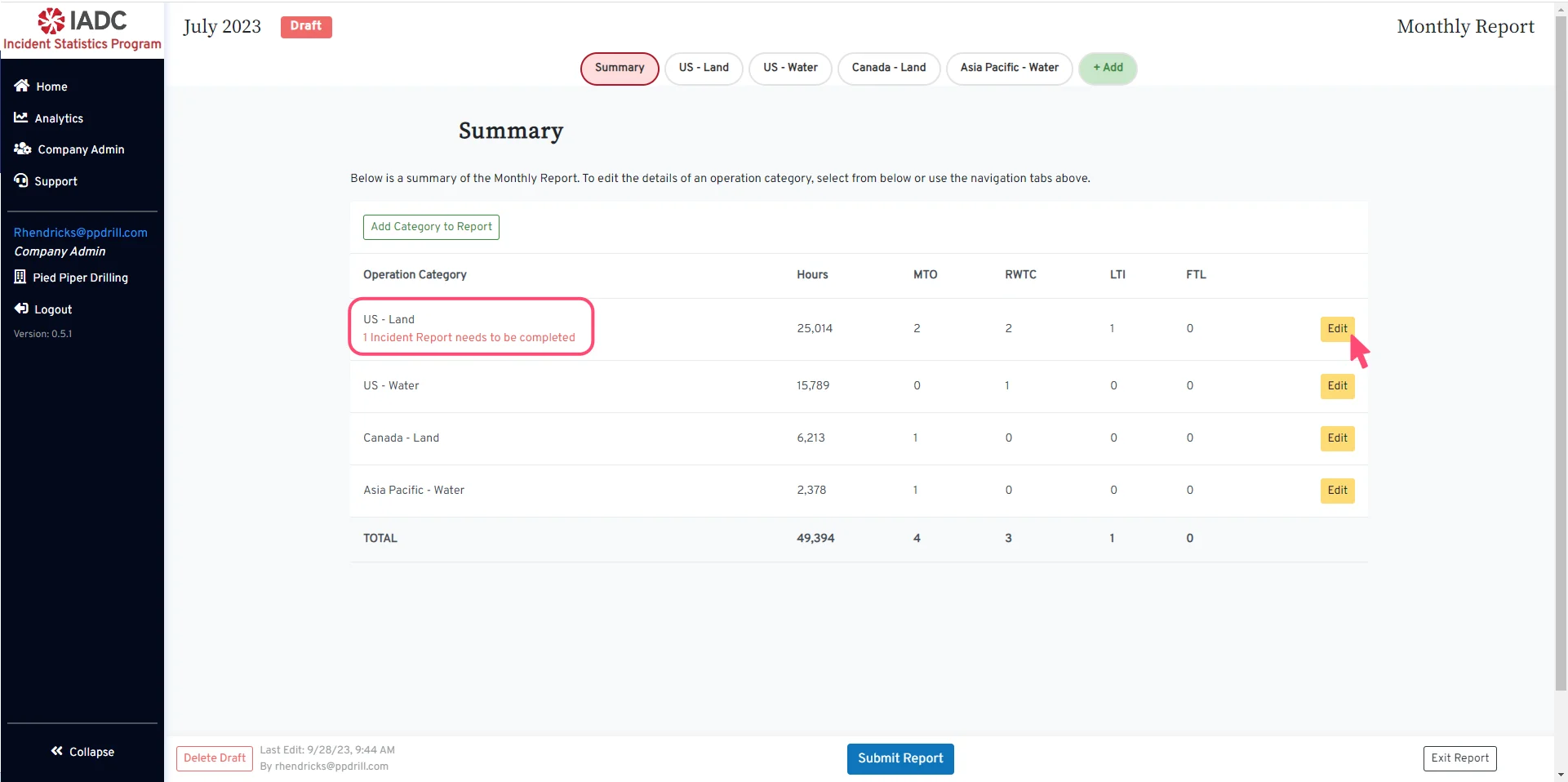
- Close the error message.
- Navigate to the report that has the red warning.
- Click the ‘Edit’ button.
- Navigate to the incomplete SIR and click ‘Edit’.
- Provide an answer for all required questions.
- Click the ‘Save Changes’ button.
Once all required questions have been answered for all SIRs in the month, click ‘Submit Report’.For more information about editing SIRs, read the following guide:Add Incidents / Create a SIR
View the Add Incidents / Create a SIR guide.
 The Hours Worked error is displayed if an Operation Category has incidents for that month and the hours worked for that category is 0. For a category to have incidents, hours must have been worked for that month.The operation category(s) that contains the Hours Worked error will be displayed.
If an operation category does not contain any incidents, the hours worked can be 0 for the month (i.e. no work was performed in the region for that month).
How to Fix
- Close the error message.
- Navigate to the report that has the red warning.
- Click the ‘Edit’ button for the operational category with the error.
- Enter a non-zero value for hours worked.
Once an hours worked value has been entered for all operation categories with SIRs, click ‘Submit Report’.Update Hours Worked for a Report Operation Category
View the Update Hours Worked for a Report Operation Category guide.